---
title: "Manage HTML fonts"
slug: "manage-html-fonts"
updated: 2026-08-17T12:23:11Z
published: 2026-08-19T08:43:19Z
canonical: "docs.grassfish.com/manage-html-fonts"
---
> ## Documentation Index
> Fetch the complete documentation index at: https://docs.grassfish.com/llms.txt
> Use this file to discover all available pages before exploring further.
# Manage HTML fonts
> [!NOTE]
> ⚙️ For administrators
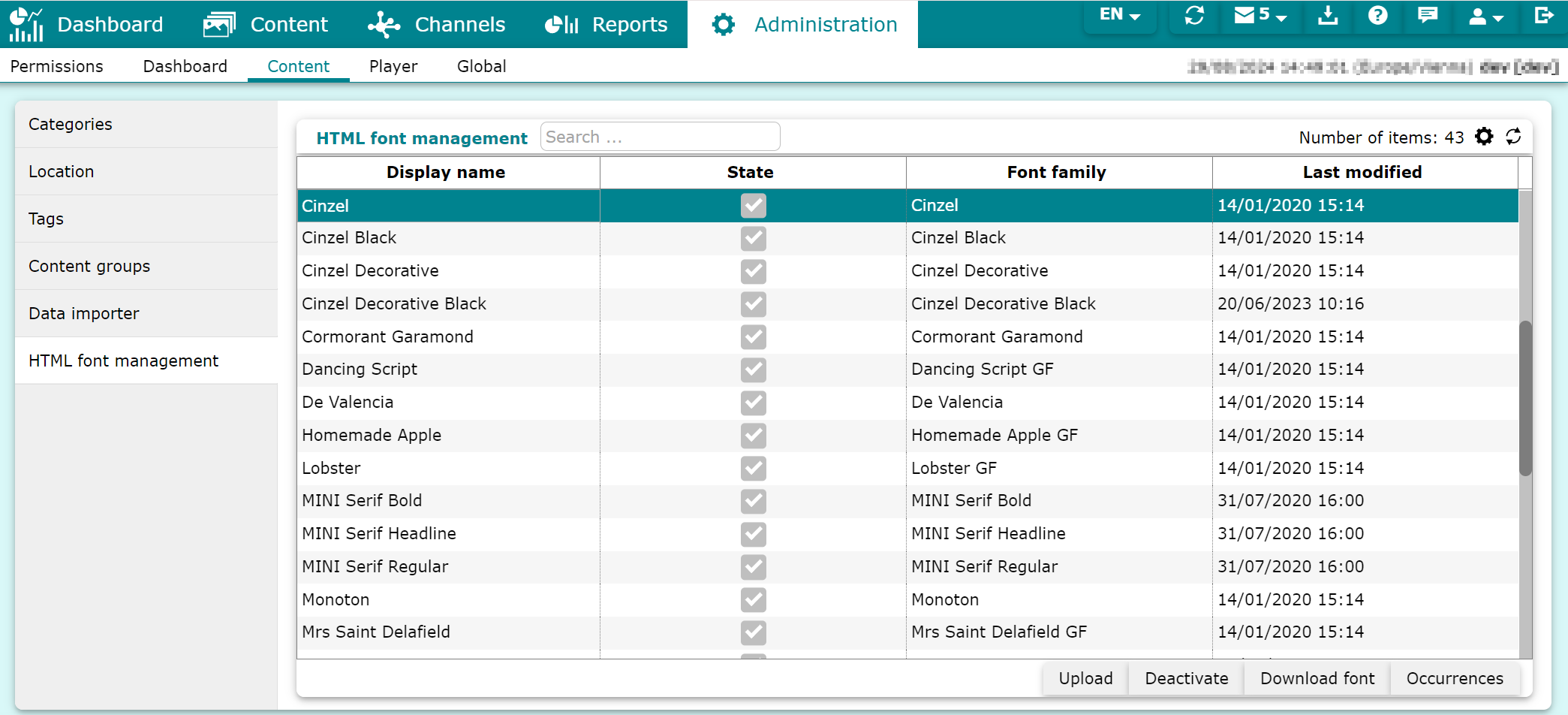
As an admin, you can install HTML fonts in IXM One to make them available to customers. In addition, you can download fonts as ZIP files, replace them, or check where fonts are used.
To manage fonts, perform the following steps:
1. Go to **Administration > Content**.
2. Click on the tab **HTML font management**.
3. Use the following options:
| **Upload** | Upload a font using the [upload manager](/grassfish/docs/manage-uploads-1). You must use the following file format: `font.zip` |
| --- | --- |
| **Deactivate** | Deactivate the selected font. The font is still available in spots that use it, but not for use in [HTML Composer](/grassfish/docs/html-composer) and [HTML Wizard](/grassfish/docs/html-wizard) spots. |
| **Download font** | Download the `font.zip` to your computer. |
| **Replace** | Replace the selected font with another `font.zip` file. This option is only available for manually uploaded fonts. |
| **Delete** | Delete the selected font. Note that you can't delete fonts that are used in a spot and that this option is only available for manually uploaded fonts. |
| **Occurrences** | Show all spots, spot groups, and players that use the selected font. |